
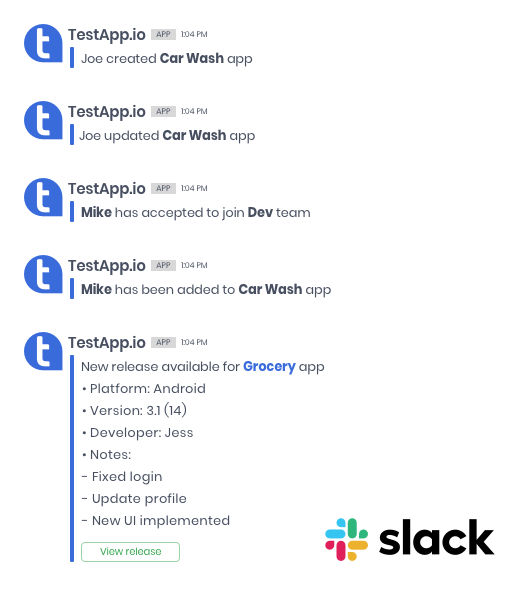
TestApp.io integrates with Slack to send real-time notifications about releases, tasks, blockers, and more directly to your team’s Slack channels. Stay informed without switching between tools. every important event is delivered as a rich, formatted Slack message.
This guide covers connecting Slack, choosing channels, configuring notification events, and troubleshooting common issues.
1. Connecting Slack to TestApp.io
The Slack integration uses OAuth 2.0 for secure authorization:
- In TestApp.io, navigate to Team Settings → Integrations → Slack.
- Click the “Connect” button.
- You will be redirected to Slack’s OAuth authorization page.
- Select the Slack workspace you want to connect.
- Review the permissions requested by TestApp.io and click “Allow”.
- You will be redirected back to TestApp.io with Slack now connected.
2. Selecting a Notification Channel
After connecting, choose which Slack channel will receive notifications from TestApp.io:
- On the Slack integration settings page, you will see a list of available channels from your connected Slack workspace.
- Select the channel where you want TestApp.io notifications to appear.
- Click “Save” to confirm your selection.
Choose a channel that your team actively monitors. Many teams create a dedicated channel (e.g., #testapp-notifications) to keep notifications organized without cluttering general discussion channels.
3. Configuring Notification Events
TestApp.io lets you choose exactly which events trigger Slack notifications. This ensures your team gets the information they need without notification fatigue.
Available notification events include the following:
- New release uploaded: Get notified when a new app build is uploaded to TestApp.io.
- Task created: A new task has been created.
- Task updated: An existing task has been modified (status, priority, assignee, etc.).
- Task completed: A task has been marked as done.
- Blocker reported: A critical blocker has been filed against a release.
- Blocker resolved: A previously reported blocker has been resolved.
- Version status changed: A release version’s status has been updated.
- Integration sync events: Notifications about sync activity with connected project management tools.
To configure events:
- In the Slack integration settings, go to the Events section.
- Toggle on the events you want to receive notifications for.
- Toggle off any events you want to mute.
- Click “Save” to apply your preferences.
4. What Notifications Look Like
TestApp.io sends rich, formatted messages to your Slack channel. Each notification includes:
- Event type: A clear label indicating what happened (e.g., “New Release" or “Blocker Reported”).
- Relevant details: App name, version, platform, task title, or blocker description.
- Action context: Who performed the action and when.
- Direct links: Clickable links that take you straight to the relevant page in TestApp.io.
These rich messages make it easy to understand what happened at a glance and take action directly from Slack.
5. Managing Your Slack Integration
You can adjust your Slack integration at any time without disconnecting:
Change the Notification Channel
- Go to Team Settings → Integrations → Slack.
- Select a different channel from the dropdown.
- Click "Save"
Update Notification Events
- Go to the Events section in your Slack integration settings.
- Toggle events on or off as needed.
- Click “Save”
Disconnect Slack
If you need to disconnect the integration entirely:
- Go to Team Settings → Integrations → Slack.
- Click “Disconnect”.
- Confirm the disconnection.
Disconnecting removes the OAuth authorization. You can reconnect at any time by going through the OAuth flow again.
6. Troubleshooting
If notifications are not appearing in Slack, try these steps:
- No notifications arriving: Verify that at least one event type is toggled on in your event configuration. Also confirm the integration is connected (not just previously connected).
- Channel access issues: Ensure the TestApp.io Slack app has been invited to the selected channel. In Slack, go to the channel and type
/invite @TestApp.ioif needed. - Permission errors: Your Slack workspace admin may need to approve the TestApp.io app. Check Slack’s app management settings.
- Stale authorization: If notifications stop working after a period of time, disconnect and reconnect the integration to refresh the OAuth tokens.
- Wrong channel: Double-check that the correct channel is selected in your Slack integration settings.
If your team uses Microsoft Teams instead of Slack, see our Microsoft Teams Integration guide for a comparable notification setup using Power Automate webhooks.
Related Articles
Need help? Contact us and we’ll get back to you shortly.