
This guide walks you through setting up an iOS project with Fastlane for code signing and uploading builds to TestApp.io for testing and distribution.
1. Install Fastlane
Create a ./Gemfile in the root directory of your project:
source "https://rubygems.org"

gem "fastlane"
Then run:
bundle installAdd both ./Gemfile and ./Gemfile.lock to version control. For more details, see Fastlane Setup Guide.
2. Initialize Fastlane
In your iOS project folder, run:
bundle exec fastlane initFollow the wizard, it will create ./fastlane/Appfile with your Apple ID and team configuration.
3. Initialize Match
Fastlane match generates all necessary certificates and provisioning profiles and stores them encrypted in a Git repository.
First, create a private empty GitHub repository for storing certificates and provisioning profiles. Then run:
bundle exec fastlane match initFollow the prompts and provide the new empty Git repository URL when asked. This creates the Matchfile.
4. Generate Certificates and Provisioning Profiles
bundle exec fastlane match development
# Or for ad-hoc distribution:
bundle exec fastlane match adhoc
Follow the prompts. Fastlane will generate certificates and profiles and store them encrypted in the Git repository.
Note: You will be asked to provide a match password used for encrypting the certificates and profiles. Store this password securely.
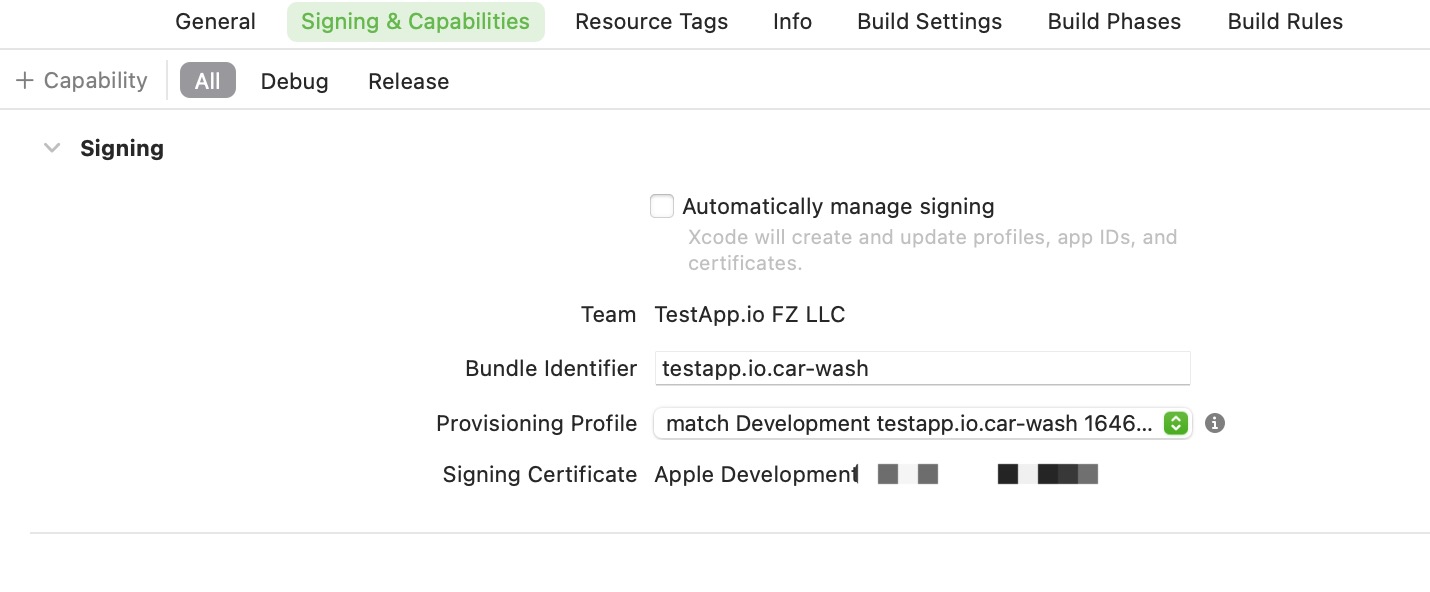
5. Select Provisioning Profiles in Xcode
The newly created certificates and profiles should now be available in your project. Open Xcode and go to Signing & Capabilities.
6. Add TestApp.io Fastlane Plugin
Install the TestApp.io plugin for Fastlane:
bundle exec fastlane add_plugin testappio7. Upload Builds to TestApp.io
Add the upload_to_testappio action to your Fastfile:
# fastlane/Fastfile
default_platform :ios

platform :ios do
  desc "Build ad-hoc and upload to TestApp.io"
  lane :beta do
    match(type: "adhoc")
    gym(export_method: "ad-hoc")
    upload_to_testappio(
      release_notes: "New beta build",
      git_release_notes: true,
      git_commit_id: false,
      notify: true
    )
  end
end
Set these environment variables (or pass them directly):
TESTAPPIO_API_TOKEN. Get from Team Settings → API CredentialsTESTAPPIO_APP_ID. Get from your app page under Integrations → Releases
For more details, see Fastlane Plugin Guide.
Related Articles
Tip: Once your CI/CD pipeline uploads a build, team members using the TestApp.io mobile app receive a push notification and can install the build with a single tap. You can also create share links to distribute builds to external testers and clients.
Need help? Contact us or visit help.testapp.io.