
Every iOS device has a unique identifier called a UDID — a 40-character string of letters and numbers. Developers use UDIDs to register test devices in their Apple Developer account so they can install ad hoc builds.
TestApp.io makes it easy to collect UDIDs from your testers without asking them to connect to a Mac.
How It Works
- Install the TestApp.io app on the iOS device
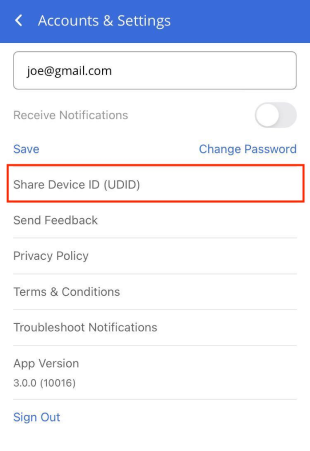
- Open the app and go to Accounts & Settings
- Tap Share Device ID (UDID)
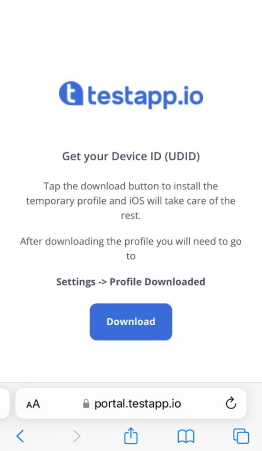
You'll be redirected to portal.testapp.io, where you can download a temporary configuration profile that contains your device's UDID.
Follow the instructions in the Settings app to install the profile. Once installed, the UDID is registered to your TestApp.io account automatically.
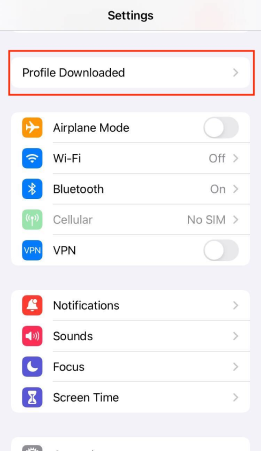
The configuration profile is temporary and only used to read the device UDID — it does not modify any settings on the device.
Interactive Demo
Related Articles
Need help? Contact us — we're happy to assist!